Cursor downloads have a long history of bundling adware and browser hijackers. Not because cursors are dangerous — they are just images or source files — but because people install them quickly without looking. This checklist takes five minutes and applies to any custom cursor download, including ours.
Why cursor downloads attract bad actors
A custom cursor is a low-stakes, high-appeal download. People want it, they do not expect it to be risky, and they rarely read installer screens. For years that made “free cursor” sites a favourite channel for bundled toolbars, search hijackers and tracking extensions. The cursor itself was harmless; the installer wrapped around it was not.
The fix is simple: know what a legitimate cursor download looks like, and refuse anything that does not match. There are three legitimate shapes:
- Windows pointer scheme — a ZIP containing
.curand.aniimage files, plus an optionalinstall.inftext file. - Browser extension — installed only from the official Chrome Web Store, Microsoft Edge Add-ons or Firefox Add-ons site, never from a downloaded file.
- Source code package — a ZIP of readable files, like the CursorX archive distributed through Cursor Custom.
Anything else — an .exe that “installs cursors,” a .msi, a .scr, a .bat — deserves a hard stop.
Step 1: Verify where the file really comes from
Before clicking download, hover over the button and read the destination in the browser’s status bar. Look at the domain, not the text on the button.
- The Cursor Custom download button points to
github.com/Felix-au/CursorX-Interactive-Cursor-Effects/archive/refs/heads/main.zip. That is GitHub’s own archive endpoint for a public repository. GitHub generates the ZIP directly from the repository contents, so what you download matches what you can browse online. - Be wary of download buttons that pass through several redirect domains, URL shorteners or “download managers.”
- Large fake “Download” buttons inside advertisements are common on free-software sites. The real link is usually smaller and plainly labelled.
If a site offers the same open-source project, prefer the original repository link. Mirrors add a party you have to trust.
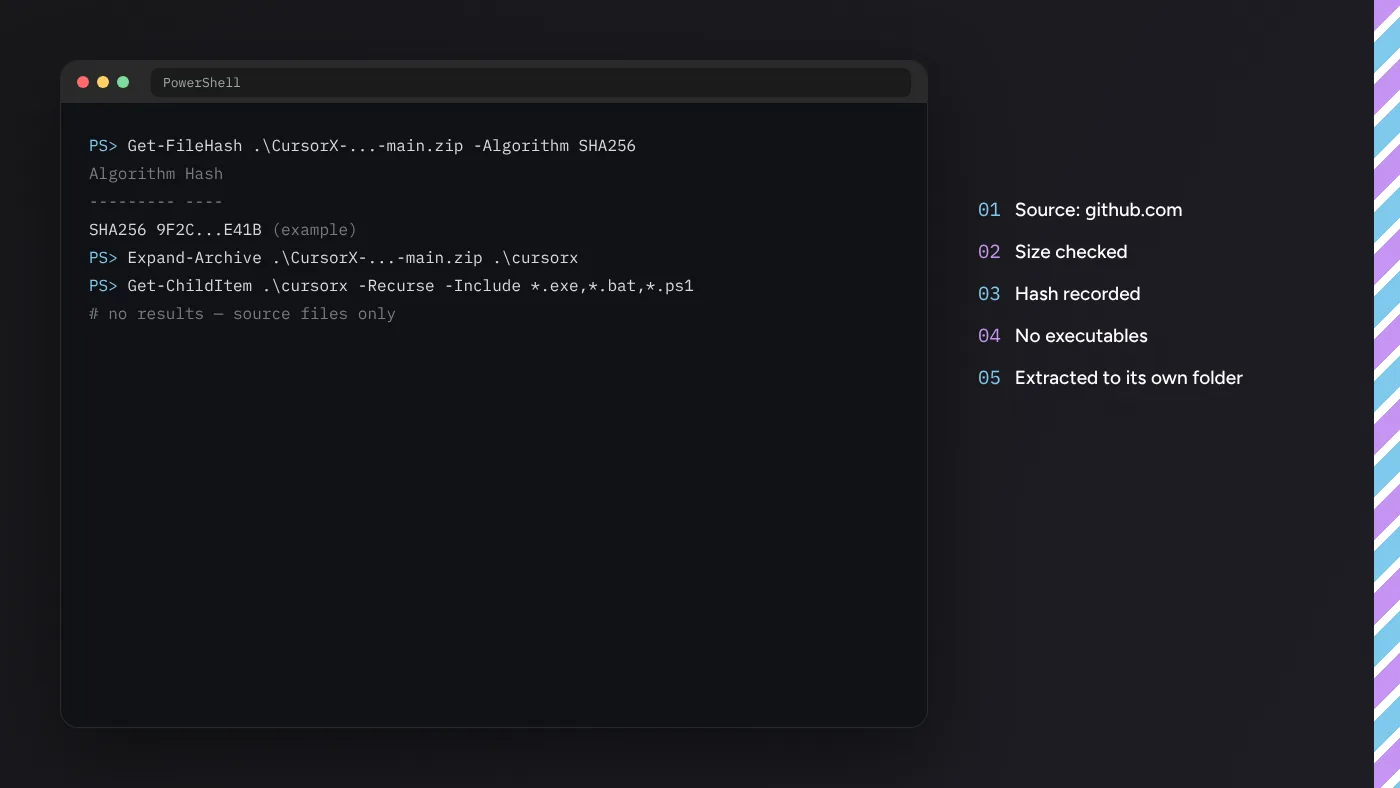
Step 2: Check the file name and size
After downloading, look at the file in your Downloads folder before opening it.
- The name should match what you expected:
CursorX-Interactive-Cursor-Effects-main.zipfor our package. - On Windows, turn on file extensions (File Explorer → View → Show → File name extensions). Malware often hides as
cursor.zip.exewhen extensions are hidden. - Source-only archives are small, usually well under a megabyte compressed. A “cursor pack” of several hundred megabytes is suspicious.
Step 3: Record a hash
A cryptographic hash is a fingerprint of the file. Recording it lets you confirm later that the file has not changed, and compare against a published value when one exists.
On Windows (PowerShell):
Get-FileHash .\CursorX-Interactive-Cursor-Effects-main.zip -Algorithm SHA256On macOS or Linux:
shasum -a 256 CursorX-Interactive-Cursor-Effects-main.zipNote that GitHub branch archives are generated on demand, so the hash changes whenever the repository receives a new commit. Use it to compare copies between teammates or between a download today and one next week, rather than expecting a fixed value forever. Release archives attached to tagged versions are stable and better suited to published checksums.
Step 4: Inspect the archive before running anything
Extract the ZIP into its own new, empty folder. Never extract directly into Downloads or the Desktop, where files mix with others and are easy to misidentify.
Then list what is inside. On Windows:
Get-ChildItem .\cursorx -Recurse -Include *.exe,*.dll,*.scr,*.bat,*.cmd,*.ps1,*.vbs,*.msiOn macOS or Linux:
find cursorx -type f \( -name "*.exe" -o -name "*.sh" -o -name "*.command" -o -name "*.app" \)For the CursorX package you should see no results. The archive contains .js, .jsx, .css, .json, .md, .html, image assets and configuration files. Every one of them can be opened in a text editor or image viewer.
Step 5: Read the parts that execute
With source packages, code only runs when you start it. For a Node.js project, the places worth reading are:
package.json— check thescriptssection. The CursorX scripts arevite,vite build,oxlintandvite preview. Look out forpreinstallorpostinstallscripts that download or execute anything unexpected.- Dependencies — confirm they are well-known packages. CursorX depends on React, React DOM and GSAP, with Vite, its React plugin and oxlint for development.
vite.config.js— build configuration. It should describe build behaviour, not make network calls of its own.- Any
apifolder — CursorX includesapi/contact.js, a serverless handler for the gallery’s own contact form. It only runs if you deploy it to a platform that supports serverless functions and supply your own API key.
After reviewing, run npm install. Then run npm audit to check dependencies against the public advisory database.
Checklist for Windows cursor scheme downloads
If you are downloading a system pointer pack instead, adapt the checklist:
- Confirm the archive contains only
.cur,.ani, image previews and an optional.inffile. - Open the
.infin Notepad. It should list cursor files and registry keys underHKCU\Control Panel\Cursors. Lines that copy executables or add startup entries are a red flag. - Install through right-click → Install on the
.inf, or load files manually in Mouse Properties. No admin prompt should be needed for per-user schemes. - Scan the archive with Microsoft Defender (right-click → Scan with Microsoft Defender) for an extra check.
Checklist for browser cursor extensions
- Install only from the browser’s official store.
- Read the permissions dialog. Changing cursors on all sites requires broad site access, so pick extensions with many users, recent updates and a clear privacy policy.
- Check the developer’s other extensions and the reviews sorted by newest. Sudden complaints about ads or redirects often signal an ownership change.
- Remove extensions you stop using. Fewer extensions mean fewer pages with injected code.
Red flags that mean “stop”
| You see | What it usually means |
|---|---|
Cursor download is an .exe | Bundled installer, often with extra offers |
| Installer asks to change your homepage or search engine | Adware bundle |
| Request for administrator rights for a cursor | Something more than images is being installed |
| “Download manager” required | Wrapper that can inject offers |
| Antivirus warning you are told to ignore | Treat it as real until proven otherwise |
| Extension asks for clipboard or download access | Far more permission than a cursor needs |
What to do if you already ran something suspicious
- Uninstall unknown programs from Settings → Apps → Installed apps, sorted by install date.
- Remove unfamiliar browser extensions and reset browser settings.
- Run a full Microsoft Defender scan, plus its offline scan for stubborn cases.
- Change passwords for accounts you used in the browser if an extension had access to all sites.
Running the package in a safer environment
If you want extra separation between new code and your everyday files, you have good options that do not require expert knowledge:
- A separate user account. Creating a second, non-administrator account on Windows or macOS for development keeps experiments away from your personal documents and browser profile.
- Windows Sandbox. On Windows 11 Pro and Enterprise, Windows Sandbox gives you a disposable desktop that is wiped when closed. Install Node.js inside it, copy the ZIP in, and test there.
- A dev container or virtual machine. Developers who already use Docker or a VM can run
npm installinside it and open the forwarded port in the host browser. - A cloud development environment. Browser-based environments such as GitHub Codespaces can open the public repository directly, so nothing is downloaded to your machine at all.
For a small, readable source package these steps are optional. They become worthwhile habits when you regularly try projects from authors you do not know.
Keeping your copy trustworthy over time
Safety is not only about the first download. After you have a working copy:
- Store your recorded hash and the download date in a note alongside the project.
- When updating, download into a new folder, compare the changes with a diff tool, and read what changed before replacing your working copy.
- Run
npm auditoccasionally and update dependencies deliberately, testing the gallery afterwards. - If you copied effects into your own project, keep them there. Your production site should not fetch code from the gallery at runtime.
These steps take a few minutes per update and make it easy to answer a simple question months later: where did this code come from, and has it changed?
Teaching the checklist to a team
If you work with others, turn this checklist into a short written policy: approved sources, the file types allowed in a cursor or asset download, and where hashes and download dates are recorded. New team members then follow the same routine without needing to judge each download from scratch, and reviews of new dependencies become quick and consistent.
The habit that matters
Every item above comes down to one habit: know what you expect to find, then check that it is there and nothing else is. A cursor download should contain images or readable code. If it contains a program, an installer or a request for broad permissions, walk away. Applied consistently, that habit keeps cursor downloads exactly what they should be — a small, harmless way to make your screen or your site more personal.
Ready to run the package after checking it? Follow the platform guide for Windows 11 or Mac.